With a massive Overwatch update inbound, Blizzard has introduced a wave of new content. Since many things have changed, even the game’s name, you may want to tweak your settings again. To help you out, we’ve prepared a guide for the best Overwatch settings that will give you maximum performance.
In a game as fast and mechanically demanding as Overwatch, each frame matters. Because of this, we recommend optimizing your settings. The right settings can be the difference between landing a headshot and watching a fight slip away, so make sure you spend a few minutes on them.
Best Overwatch Settings for Season 1
To change settings in Overwatch, open the Main Menu, then select Options. You will immediately see the Video tab, which is where you need to make a couple of tweaks to get the most out of your gaming system.
The Video tab lets you change some basic settings, such as your GPU, resolution, refresh rate, and more. These are our recommended settings for performance while keeping visual fidelity.
| Setting | Our recommendation | What it does |
|---|---|---|
| GPU | Your primary GPU | Graphics card being used |
| Graphics API | DirectX 11 | Rendering backend |
| Display Mode | Fullscreen | Exclusive fullscreen mode |
| Display | Your primary/gaming monitor | Selected monitor |
| Resolution | Your maximum resolution and refresh rate | Game resolution + refresh rate |
| Aspect Ratio | 16:9 | Screen shape format |
| Field of View | 103 | How wide your view is |
| Dynamic Render Scale | Off | Auto-adjusts resolution for FPS |
| DLSS Super Resolution | Auto | DLSS quality mode selection |
| Frame Rate Mode | Custom | Manual FPS cap |
| Maximum Frame Rate | 300 | FPS limit |
| V-Sync | Off | Prevents screen tearing (adds latency) |
| Triple Buffering | Off | Extra frame buffering (adds latency) |
| Reduce Buffering | On | Lowers input lag |
| NVIDIA Reflex | Enabled + Boost | Reduces system latency |
| Gamma Correction | 2.20 | Brightness curve |
| Contrast | 1.00 | Image contrast intensity |
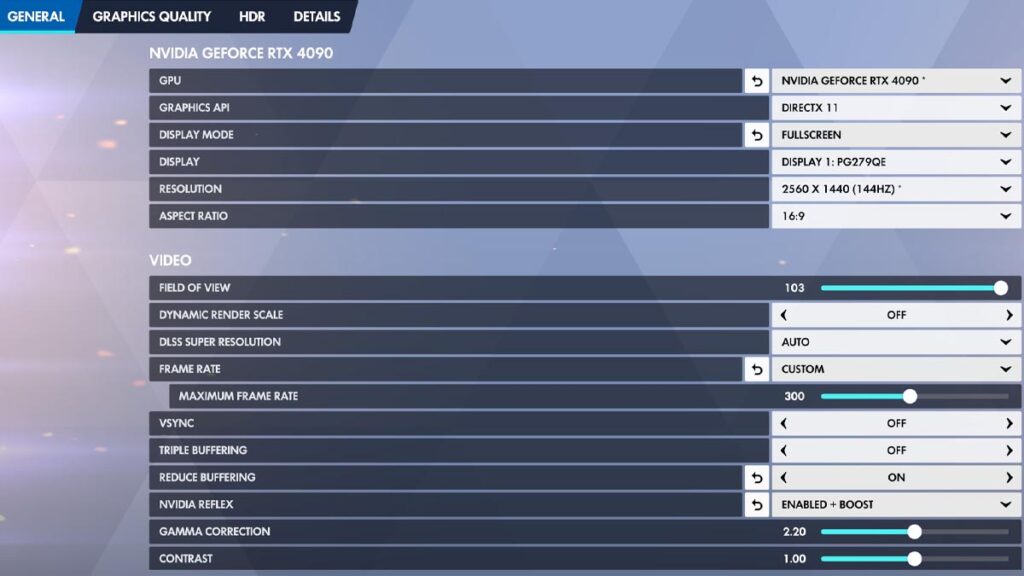
If you need an even bigger FPS boost, you can lower your resolution to 1920×1080. However, once you do this, you will notice a downgrade in the graphics quality. We don’t recommend going lower than 1920×1080, as even this resolution is becoming less ideal on modern monitors.
You can change Gamma Correction and Contrast according to your own preferences. Furthermore, if you feel that you can gain even more out of your gaming system, try changing DLSS Super Resolution to a different value.
Graphics Quality Settings in Overwatch
To fine-tune your graphics settings in Overwatch, you need to use the Graphics Quality tab. This tab allows you to control the visual fidelity of nearly every aspect of the game, from textures to shadows.
| Setting | Our recommendation | What it does |
|---|---|---|
| Graphics Quality | Custom | Lets you manually adjust each setting |
| High Quality Upsampling | NVIDIA DLSS Super Resolution | Renders at lower resolution, upscales for more FPS |
| Image Sharpening | 0.25 | Adds clarity after upscaling |
| Antialias Quality | Medium – SMAA Low | Smooths jagged edges |
| Texture Quality | High | Controls texture resolution (VRAM heavy) |
| Texture Filtering Quality | High – 4x | Improves texture clarity at angles |
| Local Fog Detail | Medium | Controls environmental fog density |
| Model Detail | Medium | Geometry detail of characters/objects |
| Shadow Detail | Medium | Shadow resolution and accuracy |
| Effects Detail | Medium | Quality of explosions and ability effects |
| Lighting Quality | Medium | Overall light accuracy and realism |
| Refraction Quality | Low | Glass/distortion effects |
| Screenshot Quality | 1x Resolution | Screenshot resolution multiplier |
| Ambient Occlusion | Low | Adds subtle contact shadows |
| Dynamic Reflections | Low | Moving object reflections |
| Local Reflections | Off | Real-time environment reflections |
| Damage FX | Default | Visual hit effects (blood/sparks) |
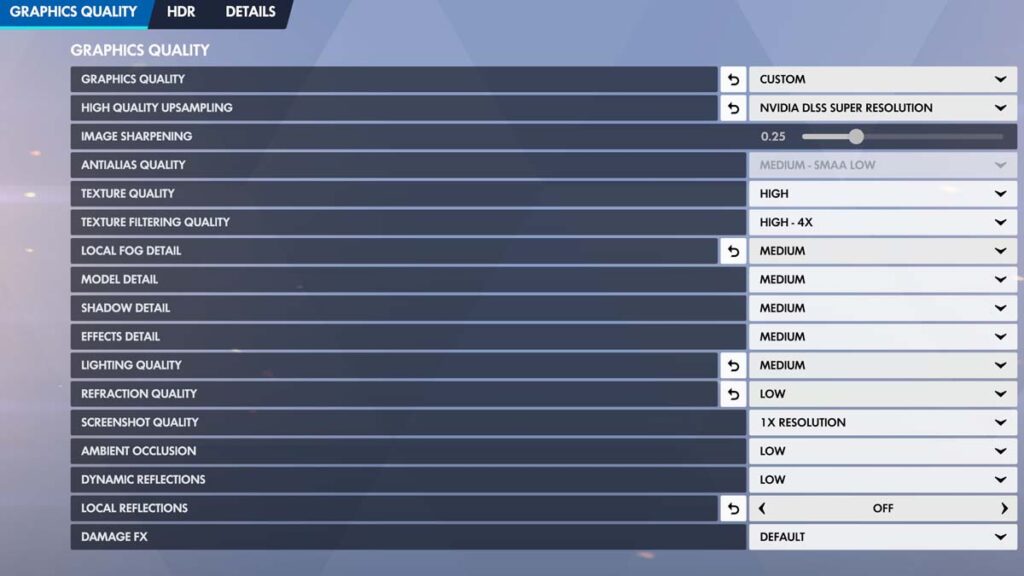
We recommend you keep some settings, such as Refraction Quality, to Low. The reason is the significant FPS cost for relatively little visual improvement. Dynamic Reflections are rarely noticeable during fast-paced gameplay, so keeping them at the lowest setting is fine, while increasing shadows quality will result in sharper shadows, yet the cost is too high.
Some settings, such as Model Detail or Texture Quality, are noticeable in fights, so you could increase them to High if you prefer. However, we recommend keeping them at Medium for a more consistent framerate.
Season 1 has introduced many changes, so feel free to experiment and choose the best Overwatch settings for yourself if these don’t work out for you. The Overwatch player count has been high since the launch of the new season, so make sure to tune up your machine to rank up without hassle!
What are the best graphics settings for Overwatch?
The best graphics settings are usually ones that will make Overwatch still look good, but increase your framerate. For this reason, we recommend you choose a variety of Low and Medium settings, with a couple of High options.
How to get a higher FPS in Overwatch?
To get more FPS in Overwatch, lower your resolution, decrease graphics quality to Low, and turn on DLSS Super Resolution. Make sure that your framerate cap is properly selected as well.