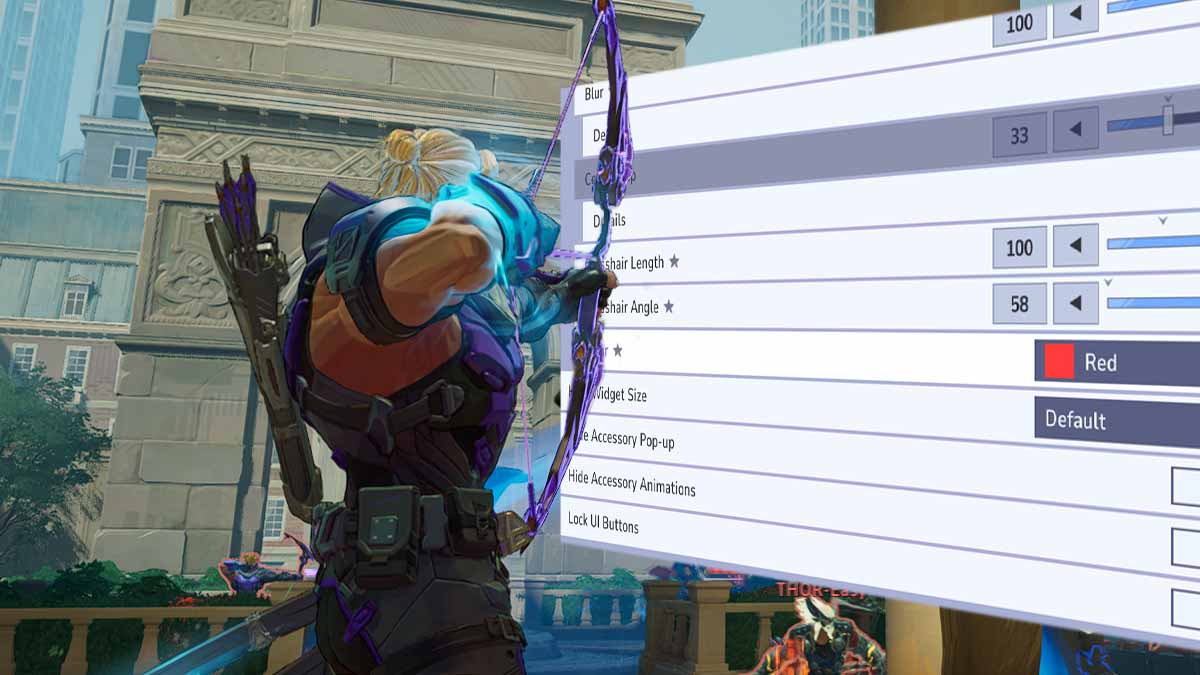
Marvel Rivals crosshairs are highly customizable, and a clean reticle makes it much easier to follow your aim point during chaotic team fights. You can change the shape, color, size, outline, and opacity of your crosshair, and even save a different one for each hero. However, a reticle that feels perfect on Hela can feel completely wrong on Spider-Man.
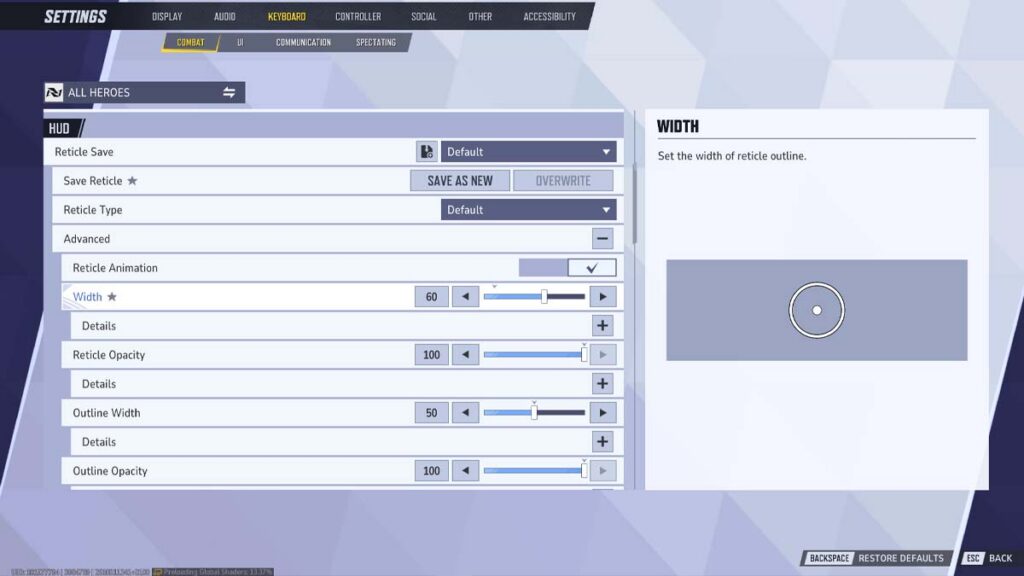
To change your crosshair, open Settings, select the Keyboard or Controller tab, go to Combat, and scroll down to the HUD section. We recommend starting with a small Crosshairs reticle and Reticle Animation turned off, then fine-tuning it for the heroes you play most. PC players can also import crosshair codes, while players on every platform can copy pro reticles straight from player profiles.
Best Marvel Rivals crosshairs to start with
There is no perfect crosshair for every player, but a few settings make a good starting point for most people. The general-purpose setup below stays visible without covering your targets, so it works as a solid base before you build hero-specific versions. It uses the setting names from the reticle menu as of Marvel Rivals Season 10.5.
| Setting | Starting point | Why it helps |
|---|---|---|
| Reticle Type | Crosshairs | A center dot and four short lines give you a precise aim point without a circle covering distant targets |
| Reticle Animation | Off | The reticle stays the same size when you shoot, jump, or use movement abilities |
| Color | Cyan, green, or yellow | Bright, saturated colors stand out against most maps and ability effects |
| Dot Width | Small, around 10 to 16 | The dot stays visible without hiding an enemy’s head at long range |
| Crosshair Width and Crosshair Length | Thin and short | The lines frame your target instead of covering it |
| Center Gap (Crosshair Radius) | Small | A little space around the dot lets you see what you are shooting |
| Reticle Opacity | 100 (maximum) for the dot and lines | A fully opaque reticle won’t fade into bright ability effects |
| Outline Width and Outline Opacity | Thin and partly visible | A subtle outline separates the reticle from light backgrounds |
| Blur | 0 | Sharp edges make the center easier to read |
These values are a starting point rather than a final answer. Load into the Practice Range, test the reticle against bright and dark backgrounds, and change only one or two settings at a time. If you lose the dot in big fights, raise Dot Width or switch to a brighter color before you touch anything else.
Marvel Rivals reticle types explained
The Reticle Type setting decides the basic shape of your crosshair, and every other slider builds on that choice. The five options compare like this:
| Reticle Type | What you see | Best for |
|---|---|---|
| Default | The game’s standard reticle | Players who are happy with the stock look |
| Dot | A single dot | Precise, headshot-focused heroes |
| Crosshairs | Four lines, plus an optional center dot | All-round use on most ranged heroes |
| Circle | A ring, plus an optional center dot | Close-range heroes and wide attacks |
| Circle and Crosshairs | A ring and four lines | Heroes who mix precise and wide attacks |
The Default reticle works fine for casual play, but its circle can cover small targets at long range. That’s why Dot and Crosshairs suit precision heroes better, while Circle makes more sense on heroes who fight up close.
How to change your crosshair in Marvel Rivals
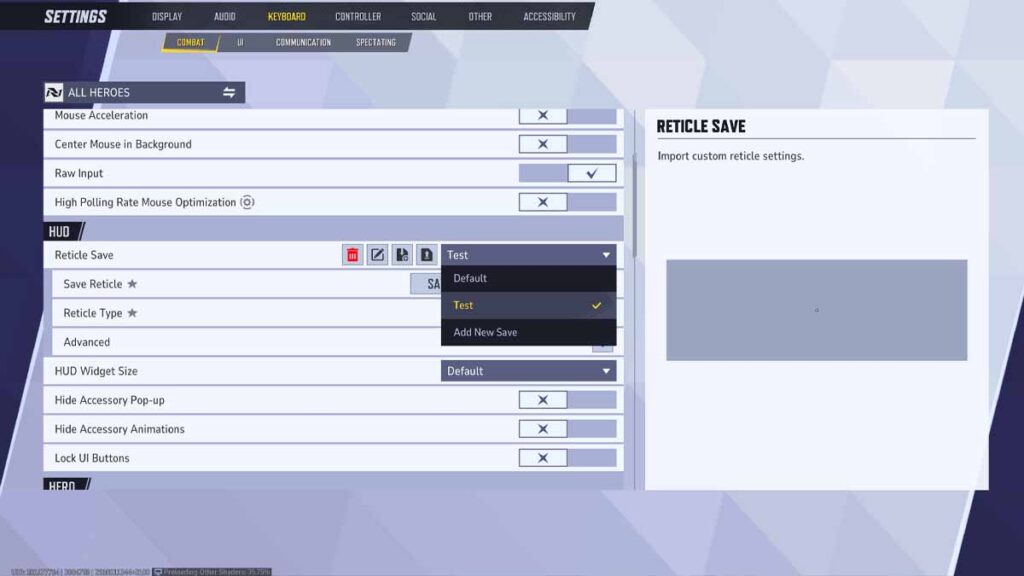
You can change your crosshair from the main menu or in the middle of a match, and the steps are nearly identical on PC, PlayStation, and Xbox:
- Open Settings from the main menu, or from the pause menu during a match.
- Select the Keyboard tab if you play with a mouse and keyboard, or the Controller tab if you use a controller.
- Open the Combat section and scroll down to HUD.
- Pick a Reticle Type and check the preview on the right side of the screen.
- Select the plus icon next to Advanced to unlock every slider, from width and opacity to center gap and color.
- Scroll back up and select Save As New to store the reticle as a reusable save, or Save to update the save you are editing.
How to set a different crosshair for each hero
Your reticle settings apply to every hero until you create a hero-specific version. To do this, select All Heroes in the top-left corner of the Combat menu, pick the hero you want, and confirm your choice. Any reticle you set while that hero is selected only applies to them, and you can return to your global settings by selecting All Heroes again.
How to import, export, and copy crosshairs in Marvel Rivals
You don’t have to build every reticle from scratch. Marvel Rivals lets PC players share crosshairs through codes, and anyone can copy reticles from pro players’ profiles. This is what works on each platform:
| Feature | PC | PlayStation and Xbox |
|---|---|---|
| Custom reticle sliders | Yes | Yes |
| Hero-specific reticles | Yes | Yes |
| Import and export codes | Yes | No |
| Copy pro reticles from profiles | Yes | Yes |
How to import a crosshair code on PC
- Copy the full crosshair code without extra spaces or quotation marks.
- Open Settings, select the Keyboard or Controller tab, go to Combat, and scroll down to HUD.
- Select the Import Save icon next to the Reticle Save dropdown.
- Paste the code and select Confirm.
- Check the new reticle in the preview and save it if you want to keep it.
Unfortunately, the Import Save option only works on PC. PlayStation and Xbox players have to recreate shared reticles manually by matching each slider value.
How to export your crosshair code
To share your own reticle, select the Export Save icon next to Import Save, and the game copies the current reticle’s code to your clipboard. It’s a good idea to keep your favorite codes in a text file, since that lets you restore any reticle in seconds.
How to copy a pro player’s crosshair
The fastest way to find a proven reticle is to take one from a pro player. In April 2026, NetEase added Favorite Reticle previews to player profiles, letting you see what a pro’s reticle looks like and copy it for yourself. A month later, Season 8 expanded the feature, so you can now copy the custom crosshairs pro players use on each individual hero.
To try it, open a pro player’s profile, for example through the in-game Esports hub, and copy the reticle for the hero you play. NetEase listed the original feature under all platforms, which is a massive upgrade for console players who still can’t import codes. However, a pro’s reticle is only a starting point, so tweak it if it doesn’t suit your eyes or your display.
Best crosshairs for each type of Marvel Rivals hero
Not every hero needs a unique crosshair. However, heroes with very different attacks benefit from different reticles, so it’s worth creating hero-specific versions for your mains. These are the setups we recommend trying:
| Hero type | Example | Reticle to try | Why it works |
|---|---|---|---|
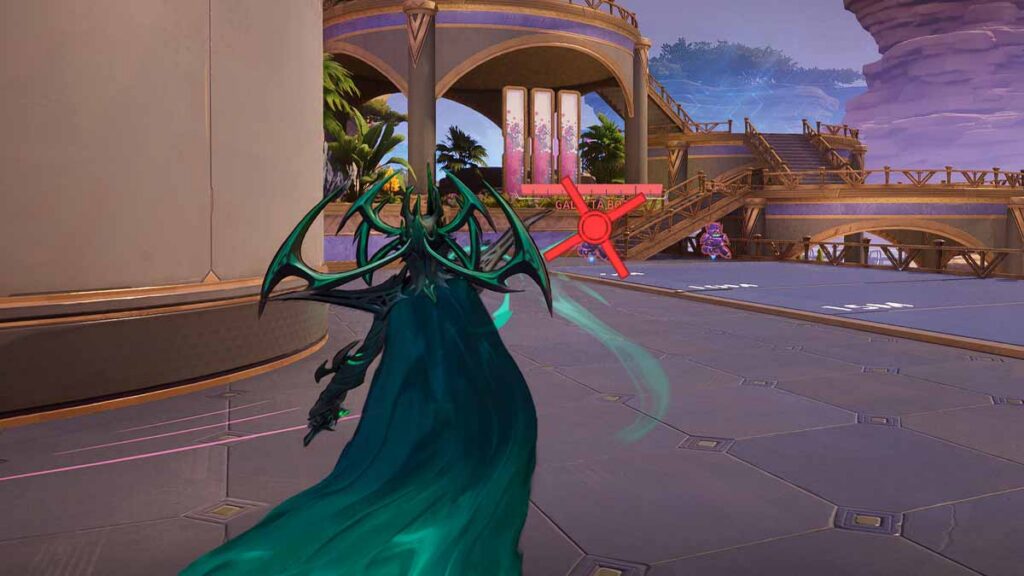
| Long-range precision | Hela | Small Dot | Nightsword Thorn hits instantly and can land critical hits, so a small dot helps you aim for heads |
| Rifle and shotgun | The Punisher | Circle and Crosshairs | The lines help you track with the rifle, while the circle works as a rough guide for the shotgun’s spread |
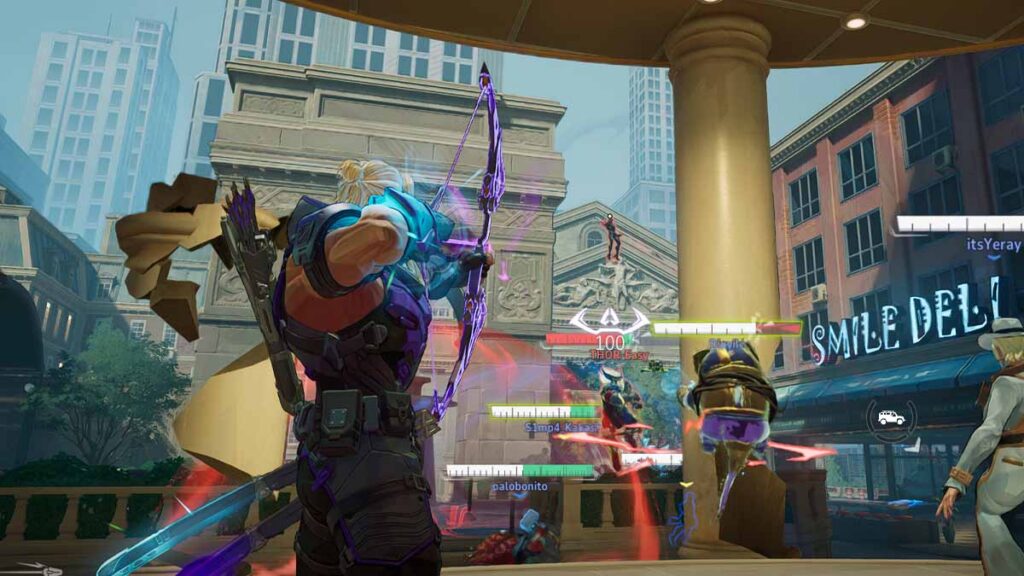
| Charged, arcing projectiles | Hawkeye | Crosshairs with short lines | The lines give you reference points when you aim above distant targets |
| Melee and dive | Spider-Man | A bright, slightly bigger Dot or Circle | You can find your aim point quickly while swinging around the map |
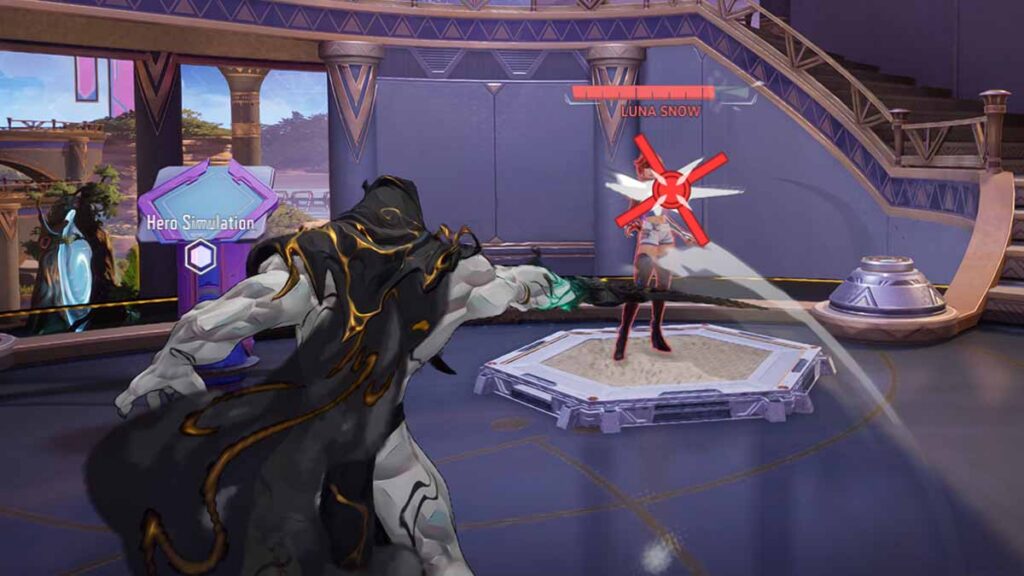
| Healers | Luna Snow | Your usual reticle with Healing Reticle Feedback turned on | Your reticle glows whenever a heal lands |
The Punisher shows why one reticle rarely fits everything. According to his official hero page, the Adjudication rifle has a spread radius of up to 0.075m at 10m, while the Deliverance shotgun spreads to 0.6m. To put this into perspective, the shotgun’s spread is eight times wider, so test your circle size against it in the Practice Range.
Hawkeye is another special case, since Piercing Arrow is a charged projectile with an arced trajectory. On top of this, his Archer’s Focus passive boosts Piercing Arrow damage when you keep your aim on an enemy within 40m. In other words, steady reticle placement directly adds damage, so an easy-to-read reticle is even more valuable on him.
If you play Strategists, turn on Healing Reticle Feedback, which makes your reticle glow whenever you heal an ally. It’s especially handy on Luna Snow, since her Light & Dark Ice shots damage enemies and heal allies with the same attack. The option is off by default and set per hero, so select each healer in the All Heroes menu, scroll down to the Hero section, and enable it separately.
Balance patches can also change how a hero aims. Season 10 increased the projectile speed of Daggers of Denak, the primary attack of Doctor Strange, from 60m/s to 80m/s, which means his daggers now need less lead. That’s why it’s worth retesting your mains in the Practice Range after every major balance patch.
Does your crosshair affect aim in Marvel Rivals?
Your crosshair settings only change what you see on screen. They don’t change weapon spread, projectile speed, damage, hit registration, or aim assist. However, a reticle that is easy to see and doesn’t cover targets helps you place your shots more consistently in busy fights.
If your shots still feel off after a reticle change, the next place to look is your Marvel Rivals aim settings. Mouse sensitivity sits in the same Combat menu, while controller players also have aim assist, a separate system that has nothing to do with the reticle’s appearance. Either way, give any new setup a few matches before you judge it.
How to fix Marvel Rivals crosshair settings not applying
If your new crosshair isn’t showing up in matches, check the following:
- The hero has its own reticle: Changes under All Heroes don’t replace a hero-specific reticle. Select that hero in the All Heroes menu and edit their reticle there.
- You edited the wrong tab: Reticle settings appear under both the Keyboard and Controller tabs, so edit the one that matches the input you play with.
- The code won’t import: Remove extra spaces or quotation marks and make sure you copied the entire code. In April 2025, NetEase also fixed an error that sometimes showed an invalid character message during imports.
- Your save slots are full: Marvel Rivals limits how many reticles you can save, so delete one you no longer use from the Reticle Save dropdown.
Back in February 2025, some players reported losing their custom reticles after an update. Later that month, NetEase started uploading all reticle changes to server storage to prevent losses caused by local issues. Even so, exporting your favorite codes on PC is the safest backup.
Once your crosshair is set, make sure to check a Season 11 leak that points to two new heroes, Victor von Doom/Doctor Doom and Kurt Wagner/Nightcrawler. If the leak is accurate, you’ll have two more heroes to build reticles for when Season 11 arrives on November 13.
Frequently Asked Questions
Cyan, green, and yellow are safe picks, since they contrast with most maps and ability effects. The default color is white, and the Color dropdown also includes a Custom option with adjustable RGB values.
Yes. Reticle customization is part of the game’s own settings, so you can use your custom crosshair in ranked matches. However, stay away from mods to avoid getting banned.
NetEase hasn’t confirmed whether reticle settings follow your account across platforms, even though cross-progression now links your progress between PC and consoles.