You can play Fortnite on a Chromebook, but you can’t download it. There is no ChromeOS version of Fortnite, and Epic Games points Chromebook players to cloud gaming instead. Xbox Cloud Gaming, NVIDIA GeForce NOW, and Amazon Luna all stream Fortnite into a Chrome tab, so there is nothing to install.
The simplest free option is Xbox Cloud Gaming, which only needs a Microsoft account and a controller. For keyboard and mouse play, GeForce NOW’s free tier is the better pick. Here is how to play Fortnite on a Chromebook with each service, along with the controller, keyboard, and connection tips ChromeOS players need.
Can you play Fortnite on a Chromebook?
You can play Fortnite on a Chromebook through cloud gaming, which is the only method Epic supports. The Epic Games Store isn’t available on Chromebooks, and Epic’s Chromebook help page lists just three services: Xbox Cloud Gaming, GeForce NOW, and Amazon Luna. Each one lets you play Fortnite without installing anything, straight from Chrome.
Cloud gaming runs Fortnite on the service’s servers and streams the picture to your Chromebook, which only has to play back video and send your inputs. Even an inexpensive Chromebook can stream Fortnite smoothly if it meets the service’s requirements and has a stable connection. The trade-off is that you need a fast, stable connection, and every stream adds some input delay.
Which service is best for playing Fortnite on a Chromebook?
All three services stream the full version of Fortnite, including Battle Royale, Zero Build, LEGO Fortnite, and Fortnite Festival, and your Locker follows you once your Epic Games account is linked. On a Chromebook, the differences come down to cost, controls, and what each service asks for:
| Service | Cost | Controls | What you need |
|---|---|---|---|
| Xbox Cloud Gaming | Free one-hour sessions | Controller, no keyboard and mouse support for ChromeOS | A Microsoft account, ChromeOS 85 or later, and one of 29 supported countries |
| GeForce NOW | Free tier with ads, queues, and one-hour sessions | Keyboard and mouse, or a controller | An NVIDIA account in a supported region, 4GB of RAM, and Chrome 77 or later |
| Amazon Luna | Included with Amazon Prime or Luna Premium | Keyboard and mouse, or a controller | A Prime membership from the country you live in |
We recommend Xbox Cloud Gaming if you already own a controller, as it costs nothing and gets you into a match with the fewest steps. GeForce NOW is the free pick for keyboard and mouse players, while Amazon Luna suits households that already pay for Prime and live in one of its countries.
How to play Fortnite on a Chromebook with Xbox Cloud Gaming
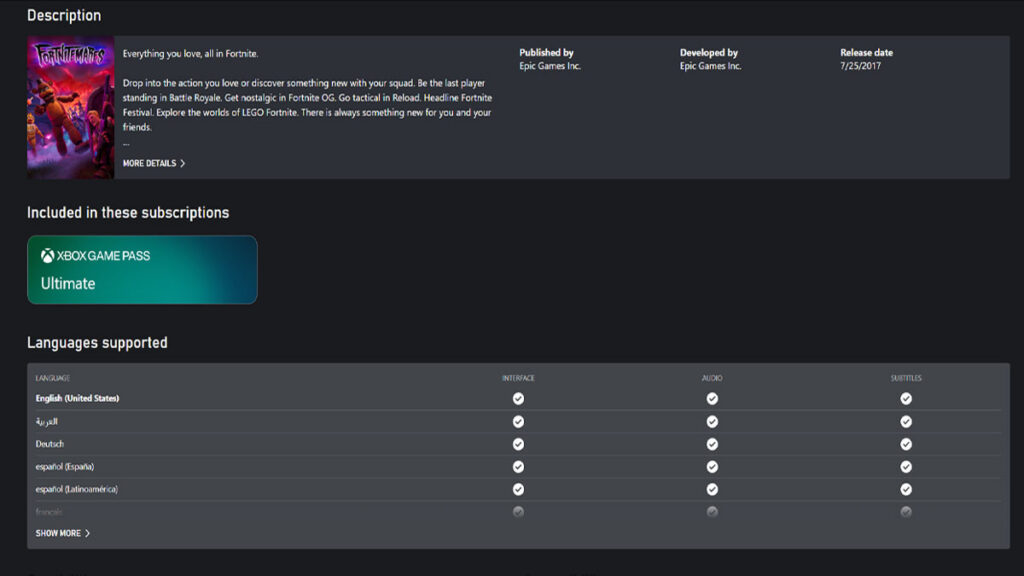
Xbox Cloud Gaming usually needs a Game Pass plan, but Fortnite is free to stream with any Microsoft account. Microsoft supports Chromebooks running ChromeOS 85 or later, and it only lists keyboard and mouse play for Windows PCs and Macs, so connect a controller before you start. Once it’s paired, here is how to launch Fortnite:
- Open Fortnite on Xbox Cloud Gaming in Chrome.
- Select Sign in and log in with your Microsoft account, or create one for free.
- Set up an Xbox profile if necessary.
- Choose Controller under Play with, then select Play.
- Sign in with your Epic Games account.
Your Fortnite progress on Xbox Cloud Gaming comes from the Epic Games account tied to your Xbox profile. An empty Locker usually means the profile points to a second Epic account, and our guide to Fortnite crossplay and cross-progression shows how account linking works.
Each free session lasts up to one hour, which means relaunching the stream now and then. Microsoft can also place you in a queue when servers are busy. You should start a fresh session between games whenever you’re close to the limit to avoid getting mid-match interruptions.
How to play Fortnite on a Chromebook with GeForce NOW
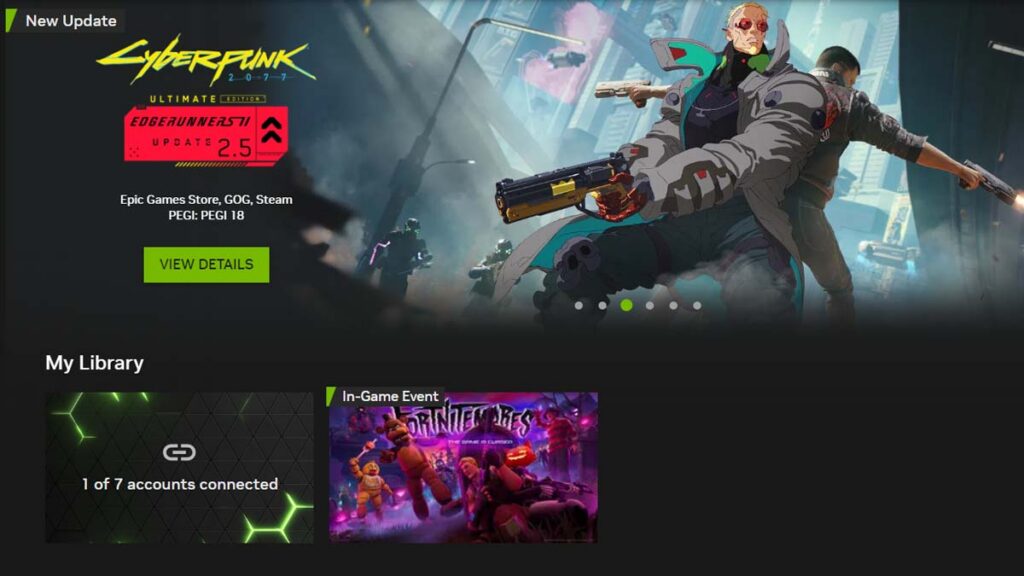
GeForce NOW streams the PC version of Fortnite, and it’s the only free way to play on a Chromebook with official keyboard and mouse support. NVIDIA asks for a Chromebook with at least 4GB of RAM and Chrome 77 or later, and its free membership doesn’t require any payment details.
The free tier has three catches. You watch ads before each session, wait behind paying members when servers are busy, and get up to one hour per session. Paid plans add priority access and longer sessions, and Ultimate is the only plan that streams at 1600p and 120 FPS on supported Chromebooks.
To start playing, follow these steps:
- Open GeForce NOW in Chrome.
- Log in with your NVIDIA account, or create one and choose the free membership.
- Search for Fortnite and select its tile.
- Select Play, then sign in with your Epic Games account when Fortnite asks.
- Wait for the ads and any queue to finish, and Fortnite opens in the same tab.
To skip the Epic sign-in on future sessions, connect your Epic Games account in GeForce NOW’s settings. If your account uses two-factor authentication, expect a security code the first time you sign in, since Epic treats NVIDIA’s servers like any other new device.
How to play Fortnite on a Chromebook with Amazon Luna
Fortnite on Amazon Luna costs nothing extra for Prime members, and a Luna Premium subscription unlocks it as well. Epic also confirms that Chromebook players can use a keyboard and mouse on Luna. It’s important to note that Luna streams games in only 14 countries, and your Prime membership must be registered in the country where you live.
To play Fortnite on Luna, follow these steps:
- Open Fortnite on Amazon Luna in Chrome.
- Sign in with the Amazon account that has Prime or Luna Premium.
- Select Play.
- Link your Epic Games account when Luna asks, so your Locker carries over.
How to connect a controller to your Chromebook
Xbox Wireless Controllers and PlayStation DualShock 4 and DualSense controllers work with all three services on a Chromebook, over Bluetooth or a USB cable. A cable is the easiest option, since there is nothing to pair. To connect a controller over Bluetooth, follow these steps:
- Put the controller in pairing mode. On an Xbox controller, turn it on and hold the Pair button until the Xbox button flashes quickly. On a PlayStation controller, hold the PS button and the Create or Share button until the light bar flashes.
- On your Chromebook, select the time in the bottom-right corner to open Quick Settings.
- Select Bluetooth and make sure it’s turned on.
- Select Pair new device and choose your controller from the list.
- Open your cloud service and press any button on the controller so Chrome detects it.
If the service still doesn’t respond, refresh the tab with the controller connected, or plug it in with a USB cable instead. For a controller that keeps dropping out, open Settings, select Bluetooth, choose the controller, select Forget, and then pair it again from scratch.
How to play Fortnite with a keyboard and mouse on a Chromebook
GeForce NOW and Amazon Luna both support a keyboard and mouse for Fortnite on ChromeOS. Xbox Cloud Gaming offers the same option on Windows and Mac, but Microsoft doesn’t list ChromeOS, so it’s safer to treat Xbox as a controller-only service on a Chromebook. These tips help with the ChromeOS quirks:
- Plug in a USB or Bluetooth mouse. The touchpad works as a mouse, but aiming and building with it is far harder, and NVIDIA recommends a USB gaming mouse for GeForce NOW.
- Play in full screen. Press the full-screen key on the top row of your keyboard, or use the service’s own full-screen button.
- Tap Esc rather than holding it. On GeForce NOW in Chrome, a quick press opens Fortnite’s menu, while holding Esc for a couple of seconds exits full screen.
- Check your F-key binds. Chromebook keyboards have shortcut keys where F1 to F12 would normally be. If a Fortnite control uses an F-key, hold the Search or Launcher key while pressing the matching top-row key, turn on Treat top-row keys as function keys in your keyboard settings, or rebind the control in Fortnite.
What you need: Chromebook specs, internet speed, and input lag
Fortnite cloud gaming depends far more on your connection than on your Chromebook’s hardware. GeForce NOW asks for 4GB of RAM, and the browser requirements set by Xbox and NVIDIA are easily met by any Chromebook still receiving ChromeOS updates. To check yours, open Settings, select About ChromeOS, and install any update waiting there.
For a smooth stream on a Chromebook, NVIDIA recommends 15 Mbps for 720p, 25 Mbps for 1080p, and 35 Mbps for 1600p at 120 FPS on Ultimate. Xbox Cloud Gaming asks for at least 20 Mbps on computers, while Amazon Luna needs 10 Mbps.
Speed alone doesn’t guarantee a good stream. Latency, the round trip between pressing a button and seeing the result, matters just as much. Most Chromebooks have no Ethernet port, but a USB Ethernet adapter gives the steadiest connection. On Wi-Fi, stay close to the router and use its 5GHz band if possible.
On cheaper Chromebooks, close other tabs and Android apps before you launch Fortnite, as decoding the stream takes some processing power. If the picture stutters on GeForce NOW while your connection looks fine, lower the streaming quality in its settings and pause large downloads on other devices sharing your network.
How a Chromebook compares with a Windows gaming laptop
Playing Fortnite on a Chromebook is a different experience from playing on a Windows gaming laptop, where Fortnite is installed and runs on the laptop’s own hardware. This is how the two compare:
| Category | Chromebook | Windows gaming laptop |
|---|---|---|
| Where Fortnite runs | On the cloud service’s servers | On the laptop itself |
| Downloads and updates | Updates are automatically applied with no action needed from you | A full install through the Epic Games Launcher, plus regular updates |
| Picture quality | Depends on your internet speed and plan | Depends on the laptop’s graphics card and settings |
| Input delay | Higher, as every input travels to the server and back | Lower, with no stream in between |
| Time limits | Up to one hour per session on free plans | None |
A good connection makes the gap easy to ignore in casual Battle Royale matches, Creative islands, LEGO Fortnite, and Fortnite Festival. However, competitive players should think twice, as the extra delay can be noticeable in Ranked and tournament fights.
Can you download or install Fortnite on a Chromebook?
No, Fortnite can’t be installed on a Chromebook. On computers, Fortnite installs through the Epic Games Launcher on Windows, and there is no ChromeOS version to download. Guides that claim otherwise usually confuse ChromeOS with Android or Linux, and neither offers a supported route.
What about the Android version of Fortnite?
Fortnite is back on Google Play, and many Chromebooks run Android apps, but Epic points Chromebook players to cloud gaming rather than the Android version. Its Android requirements call for an ARM64 processor, which rules out Chromebooks with Intel or AMD chips, and Epic says a device that can’t find or install Fortnite may not be supported.
We don’t recommend turning on Developer Mode and sideloading a Fortnite APK, as switching on this mode erases everything stored locally on the Chromebook and turns off its verified boot protection. Schools often block it, and fake Fortnite apps with malicious code appeared as soon as Fortnite first came to Android.
Linux and remote desktop
ChromeOS’s Linux development environment doesn’t help either, because Fortnite has no Linux version yet. Epic has confirmed that a native Linux version is in the works, but it depends on strict security features such as Secure Boot and TPM 2.0, and Epic hasn’t mentioned Chromebooks in its plans.
Remote desktop apps such as Chrome Remote Desktop can mirror a Windows PC that already runs Fortnite, but they’re designed for remote access rather than gaming, and Epic doesn’t list them as a way to play. If you own a gaming PC, playing on it directly is a far better experience than streaming it to a Chromebook.
Can you play Fortnite on a school Chromebook?
Only if your school allows it. School Chromebooks are managed by the school’s IT team, which controls the websites, apps, and accessories each device can use, and school networks often filter gaming sites as well. If Xbox Cloud Gaming, GeForce NOW, or Luna won’t load on a school device, the block is most likely deliberate.
Don’t try to work around it. Sites that promise Fortnite unblocked aren’t official cloud services, so typing your Epic Games login into one puts your account at risk, and breaking your school’s device rules can land you in trouble. Play on a personal device at home instead, where cloud gaming works without school restrictions.
Fortnite on Chromebook not working? Common problems and fixes
Most problems with Fortnite on a Chromebook come from the browser, the controls, or the connection rather than from Fortnite itself. These are the most common ones and how to fix each of them:
| Problem | Fix |
|---|---|
| The service says your device or browser isn’t supported | Use Chrome rather than an Android or Linux browser, then install any update from About ChromeOS in Settings |
| The site won’t load at school | The school or its network is blocking it, so play on a personal device at home |
| Your controller isn’t detected | Press a button after the page loads, refresh the tab, or connect the controller with a USB cable |
| Keyboard and mouse don’t work on Xbox Cloud Gaming | Microsoft only supports them on Windows and Mac, so use a controller or switch to GeForce NOW or Luna |
| Your building keys do nothing | Check for F-key binds, then hold Search or Launcher with the top-row key or rebind them in Fortnite |
| Pressing Esc exits full screen | Tap Esc instead of holding it, and press the full-screen key to go back |
| Your mouse stutters on GeForce NOW | Lower the mouse’s polling rate to 125Hz, as NVIDIA suggests |
| The picture is blurry or laggy | Switch to 5GHz Wi-Fi or a USB Ethernet adapter, close other tabs, and pause downloads on your network |
| Epic asks for a security code | That’s expected the first time you sign in through a new service with 2FA turned on |
Once your Chromebook is set up, make sure to enable 2FA in Fortnite to protect your account. In addition to that, our guide on how to get better at Fortnite shares practical tips for aim, movement, and fights.
Frequently Asked Questions
Yes. Xbox Cloud Gaming streams Fortnite for free with a Microsoft account, although you’ll need a controller. GeForce NOW’s free membership supports a keyboard and mouse, with ads, queues, and one-hour sessions
No. Fortnite has no ChromeOS version, and the Epic Games Store doesn’t support Chromebooks.
Controller on a Chromebook is only needed for Xbox Cloud Gaming.
Yes, in most cases. Cloud gaming runs Fortnite on remote servers, so the Chromebook only needs to play back a video stream.
Your Locker, level, and pass progress live on your Epic Games account rather than on any device, so they appear on a Chromebook when you sign in with the same account.
If you have a controller, Xbox Cloud Gaming is the best way to play Fortnite on a Chromebook, as it’s free. Without a controller, GeForce NOW is the best free choice for keyboard and mouse play on a Chromebook, while Amazon Luna is a decent alternative.