Fortnite 2FA is not a setting inside the game. Instead, two-factor authentication is turned on through your Epic Games account, and the same setting protects Fortnite on PlayStation, Xbox, Nintendo Switch, PC, and mobile. The whole process takes a few minutes, and you can perform it in your web browser.
Epic requires 2FA to send gifts and enter tournaments. On top of this, you will receive a free Boogie Down emote once you enable it. Here is how to enable Fortnite 2FA, starting with the quick steps and followed by every Epic Games 2FA method, console account fixes, and troubleshooting.
How to enable 2FA in Fortnite
To enable 2FA in Fortnite, follow these steps on the Epic Games website:
- Sign in at epicgames.com with the Epic Games account you use for Fortnite.
- Open your Account page and select Password & Security.
- Scroll down to the Two-Factor Authentication section.
- Select Set Up next to the method you want to use.
- Enter the security code you receive to confirm the method.
Epic then marks the method as active and sends a confirmation email. Once you confirm your method, 2FA will be enabled for your Fortnite account.
Which Fortnite 2FA method should you use?
Epic Games currently supports four 2FA methods, and more than one can be active at the same time. Each one confirms a sign-in in a different way, so the right choice depends on which device you always have with you.
| Method | How you confirm a sign-in | What you need | Best for |
|---|---|---|---|
| Authenticator app | A code generated by an app such as Google Authenticator | A phone with an authenticator app installed | Your main method |
| Epic Authenticator | A number-match prompt in the Epic Games app | The Epic Games app on iPhone or Android | Approving sign-ins with a tap |
| A code sent to the email address on your Epic account | Access to that inbox | A secondary method if you don’t have a phone | |
| SMS | A code sent by text message | A phone number in a supported region | A backup only |
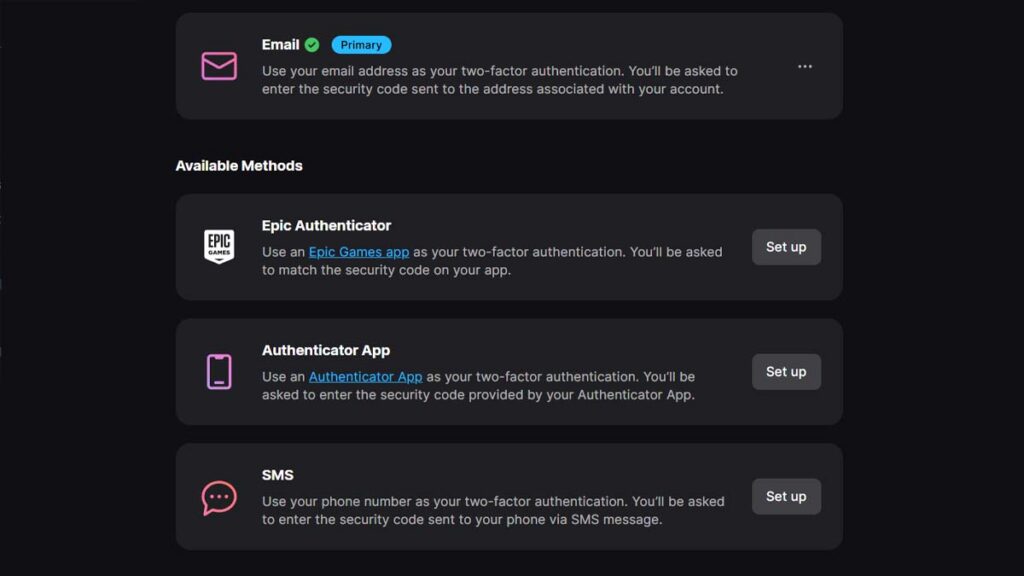
We recommend an authenticator app as the primary method, as Epic itself says authenticator apps provide the strongest protection. Email makes a sensible second method because it still works when your phone is lost. SMS belongs at the bottom of the list, as it is unavailable on Cabined Accounts and for some regional phone numbers.
Epic recommends keeping at least two methods active. With more than one enabled, select the three dots next to your preferred method and choose “Make my primary 2FA method.” That setting tells Epic which method to ask for first when you sign in.
How to set up each Epic Games 2FA method
Every method starts from the same place, which is the Two-Factor Authentication section of the Password & Security page. Once you choose the Fortnite 2FA method you’d like to use, here is how you can set it up:
Authenticator app
An authenticator app generates a fresh code on your phone every 30 seconds, even when the phone has no signal. Epic lists Google Authenticator, LastPass Authenticator, Microsoft Authenticator, and Authy as common choices, and all four work the same way.
- Install one of those apps from the App Store or Google Play.
- Select Set Up next to the authenticator app option on the Password & Security page.
- Open the app and add a new account.
- Scan the QR code shown on Epic’s page.
- Type the code from the app into the security code field and confirm it.
- Save the backup codes Epic provides somewhere safe.
It’s important to note that the backup codes are your way back in if the phone is lost or replaced. Each one is an eight-digit code that works in place of the app, so keep them in a password manager or on paper, away from the phone itself.
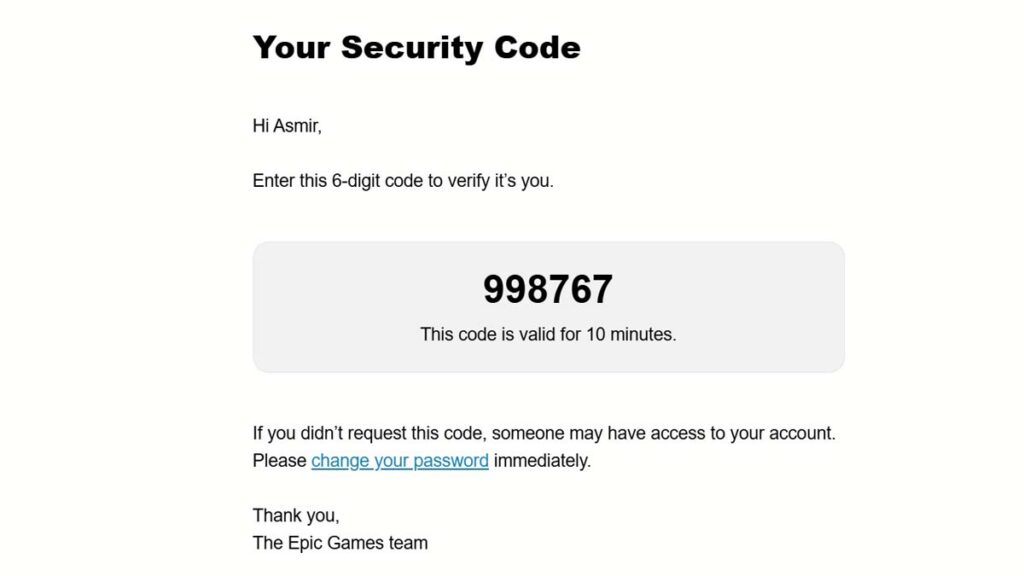
Email authentication sends each code to the address on your Epic Games account, which has to be verified first.
- Open your Account page
- Select the “click here to resend link” in the yellow notification if your email is unverified.
- Select “Verify your email” in the message Epic sends.
- Return to Password & Security and select Set Up next to the email option.
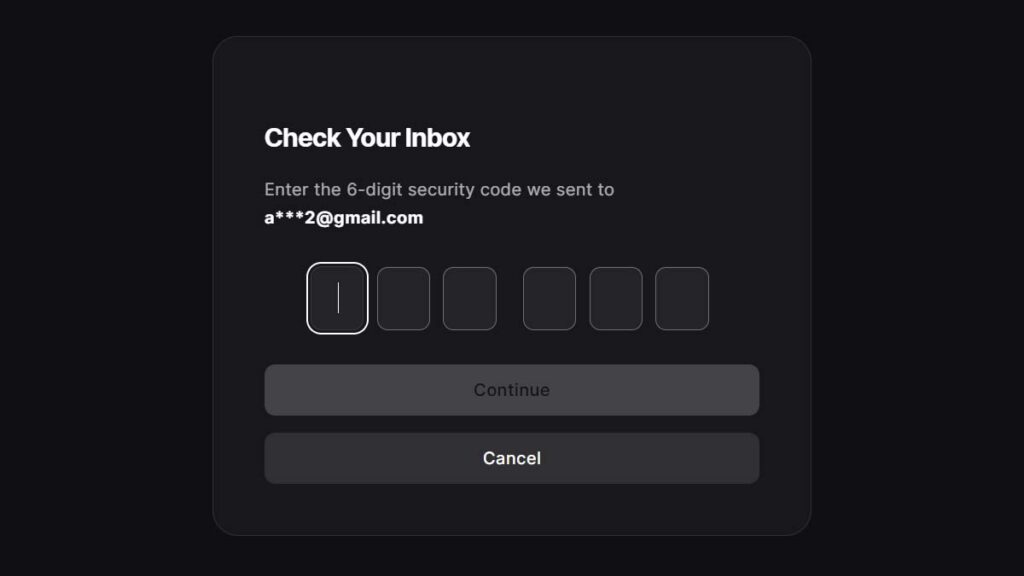
- Enter the code from your inbox.
Email is the easiest Epic Games 2FA method to set up, but it is only as secure as the inbox behind it. Protect that email account with its own unique password and 2FA, as anyone who can read your email can also read your Epic codes.
SMS
SMS authentication texts a code to your phone each time Epic needs one. However, some regional numbers are not supported, and Epic shows the error “SMS to this region is not supported” when that is the case.
- Select Set Up next to the SMS option.
- Enter your phone number and select Continue.
- Type the code from the text message into the Verification Code field.
- Select Enable SMS Authentication.
SMS 2FA is also disabled on Cabined Accounts, which Epic uses for players under 13 or under their country’s age of digital consent. Those players can use email or an authenticator app instead, and SMS becomes available once a parent completes the account setup.
Epic Authenticator
Epic Authenticator is built into the Epic Games app, which is available on the App Store and Google Play. Instead of typing a code, you approve each sign-in by selecting the matching number in the app.
- Download the Epic Games app on your phone.
- Open the app, tap Get Started, and sign in to your Epic Games account.
- Tap Enable Epic Authenticator or look under the Auth tab at the bottom of the screen.
- Complete the verification steps and follow the prompts until the status shows Enabled.
- Allow notifications so sign-in requests reach you straight away.
The same feature is included in the Epic Games Store mobile app, so players who already use that app do not need a second download. Once Epic Authenticator is enabled, it appears alongside your other methods on the Password & Security page.
How to check that Fortnite 2FA is enabled
Epic confirms a new method in two ways. The Two-Factor Authentication section updates to show the method as active, and a confirmation email arrives at the address on your account. If neither happens, the setup most likely did not finish. After that, Epic only asks for a code in four situations:
- The first time you sign in after enabling 2FA
- When you sign in on a new device
- After 30 days without signing in
- After you clear your browser’s cookies
In Fortnite, the simplest test is to try gifting an Item Shop item or queueing for a tournament. Both are blocked while 2FA is off, so getting through means the game has registered the change. Restart the game first if it was open during setup.
How to enable Fortnite 2FA on PlayStation, Xbox, Nintendo Switch, PC, and mobile
The process of setting up 2FA is the same on every platform, as Fortnite has no setting of its own on consoles, PC, or phones. You always set this up on Epic’s website or in the Epic Games app, and one activation covers every device linked to that Epic Games account.
PC and mobile players usually have an Epic email and password already, so the five steps above are all they need. However, an account created on a PlayStation, Xbox, or Switch can exist without an email address, and Epic requires one before 2FA can be enabled.
To set up 2FA on a console account, please follow these steps:
- Sign out of epicgames.com so the browser forgets any earlier session.
- On the sign-in screen, select the logo of the platform you play on.
- Enter the email and password of that console account.
- If a screen titled “Finish Setting Up Your Account” appears, fill in the missing details and select Continue.
- Open Password & Security and select Set Up next to a 2FA method.
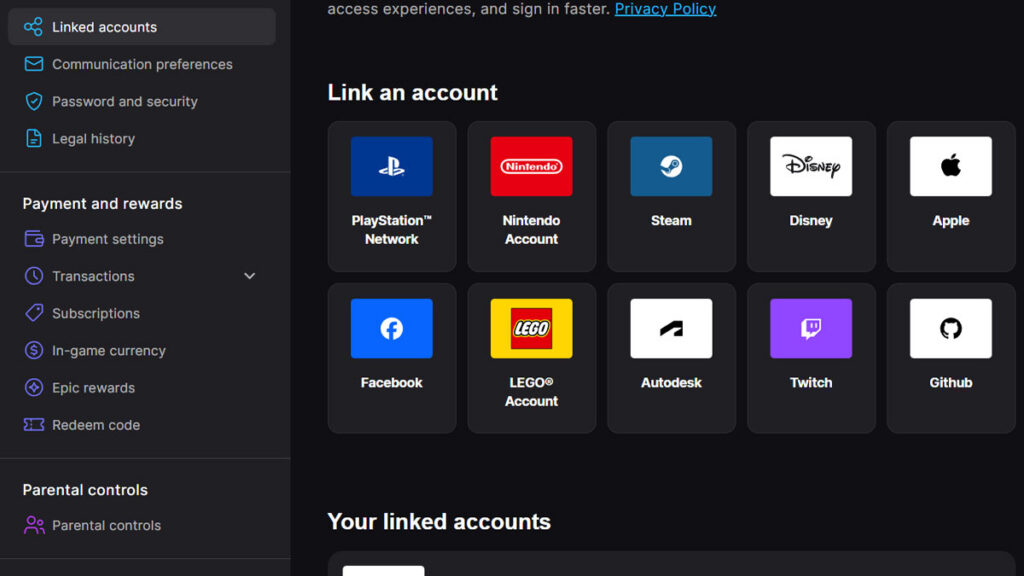
Completing that screen does not affect your progress or purchases. If Epic signs you in without showing it and the account looks wrong, the browser has probably remembered a different platform account, so repeat the steps in a private or incognito window.
Each Epic Games account can hold one PlayStation, one Xbox, and one Nintendo account. 2FA enabled on a different Epic account does nothing for the one your console uses, which is why checking the link matters. Our guide to Fortnite crossplay and account linking explains how to connect a console to the right account.
What Fortnite 2FA unlocks: gifting, tournaments, and rewards
Security is the main reason to enable 2FA, but Epic also locks several features behind it. Gifting has required 2FA since it arrived in 2018, and every official tournament carries the same rule.
| Feature | What Epic requires |
|---|---|
| Gifting | 2FA, account level two or higher, and a recipient who has been on your Friends list for at least two days |
| Tournaments | 2FA, a minimum age of 13, and account level 350 for FNCS and Cash Cups, or level 50 for other competitions |
| Free games | 2FA to claim some free games on the Epic Games Store |
| Support-A-Creator | 2FA to join the program |
| Rewards | Boogie Down emote, plus extra items in Save the World |
Gifting has a few more limits that catch players out. Epic caps it at five gifts every 24 hours, and its gifting support page lists the feature on Android, PC, PlayStation, Switch, and Xbox. Furthermore, all gifts are non-refundable, so check the recipient’s name before you confirm.
Tournament entry is stricter. Cabined Accounts cannot compete at all, and your account level is shown on the Career tab in Fortnite. If you are short of level 50, the best XP maps in Fortnite can help you close the gap.
The requirement is worth meeting even if you never plan to chase prize money. Many collaboration cups hand out cosmetics to top finishers, which makes them a perfect opportunity to unlock free Fortnite skins.
How to get the Boogie Down emote for free in Fortnite
Enabling 2FA unlocks the Boogie Down emote in Battle Royale at no cost. Epic introduced the reward in August 2018, and the dance itself came from a community contest in which players submitted their own moves. Epic’s 2FA rewards page still lists it as the current reward.
In addition to the emote, Save the World players receive 50 Armory Slots, 10 Backpack Slots, and one Legendary Troll Stash Llama. That is a useful boost now that Save the World is free to play.

The rewards may not appear straight away. Restart Fortnite first, then check that 2FA was enabled on the account you actually play on and that your console account is connected to it. It is a small reward, but a free emote for a few minutes of setup is hard to argue with.
Fortnite 2FA not working: common problems and fixes
Most Fortnite 2FA problems come down to the wrong account, the wrong method, or a code that went somewhere unexpected. The table below lists the usual problems and the fix for each one.
| Problem | Fix |
|---|---|
| Fortnite still says 2FA is not enabled | 2FA is usually on a different Epic account. Sign in with your platform’s logo, enable it there, and restart Fortnite |
| Email code never arrives | Check which method is set as primary, wait a few minutes, and look in your spam folder. Unblock Epic’s sender addresses if you blocked them |
| SMS code never arrives | Your number or region may not be supported. Use a different number or switch to another method |
| Authenticator code is rejected | Enter the newest code before it changes, and set your phone’s date and time to automatic |
| “An error occurred in our internal service” during setup | Use a private window or another device, turn off any VPN, and check that the country on your account matches where you live |
| 2FA is on, but gifting is still blocked | Check the other gifting rules, such as a two-day friendship, and the limit of five gifts every 24 hours |
| Epic asks for a code again | This is completely normal on a new device, after 30 days away, or after clearing cookies |
Setup errors that keep returning are sometimes on Epic’s side, and the status page at status.epicgames.com shows whether account services are down. In the meantime, try a different method. Epic suggests switching to email 2FA when SMS setup fails.
What to do if you lose your phone or authenticator app
Losing the device that holds your codes does not have to lock you out of Fortnite. Epic’s 2FA prompt includes a “Try another way” option, which offers two routes back into your account.
- Select Try another way on the 2FA prompt.
- Choose Email Verification to have a code sent to your inbox, or choose the backup codes option.
- Enter the emailed code or one of your eight-digit backup codes.
- Open Password & Security, remove the old method, and set up 2FA again on your new device.
If neither method works, select the “Trouble signing in?” link on the sign-in page and follow Epic’s account recovery process. This is the situation backup codes exist for, so save them on the day you enable an authenticator app.
How to change your phone number for SMS codes
A new phone number has to replace the old one before Epic can text you again. Sign in with an emailed code or a backup code if the old number is already gone, then follow these steps:
- Open the Password & Security page.
- Select the three dots next to the SMS method and choose Remove Method.
- Confirm with Remove.
- Select Set Up, enter your new number, and select Continue.
- Enter the code from the text message and select Enable SMS Authentication.
How to keep your Epic Games account secure after enabling 2FA
Epic Games 2FA is one of the best protections an account can have, but Epic recommends a few more habits alongside it:
- Unique password: Use a password for Epic that you do not use anywhere else.
- Linked accounts: Turn on 2FA for your PlayStation, Xbox, and Nintendo accounts too, because each one can be used to sign in to Epic.
- Official pages only: Enter your login details only on Epic’s own websites and apps. Epic never asks for your password by email or message.
Your precious cosmetics that may include years of Battle Passes and Item Shop purchases sit behind that login. To see what is at stake, you can estimate the value of your Fortnite account or check whether you own any of the rarest Fortnite skins, which are the cosmetics you would least want to lose.
Frequently Asked Questions
There is no 2FA setting inside Fortnite. Two-factor authentication is enabled on the Password & Security page of your Epic Games account at epicgames.com, or through Epic Authenticator in the Epic Games app.
Open epicgames.com on a phone or computer and sign in by selecting your console’s logo. Finish setting up the account, then open Password & Security and select Set Up next to a 2FA method.
No, you can play Fortnite without 2FA. Epic only requires it for sending gifts, entering tournaments, claiming some free Epic Games Store games, and joining Support-A-Creator.
Yes, Fortnite gifting requires 2FA. You also need to be level two or higher, and the recipient must have been on your Friends list for at least two days.
An authenticator app is the best choice for most players, as Epic says authenticator apps provide the strongest protection.
Yes. On the Password & Security page, select the three dots next to a method, choose Remove Method.