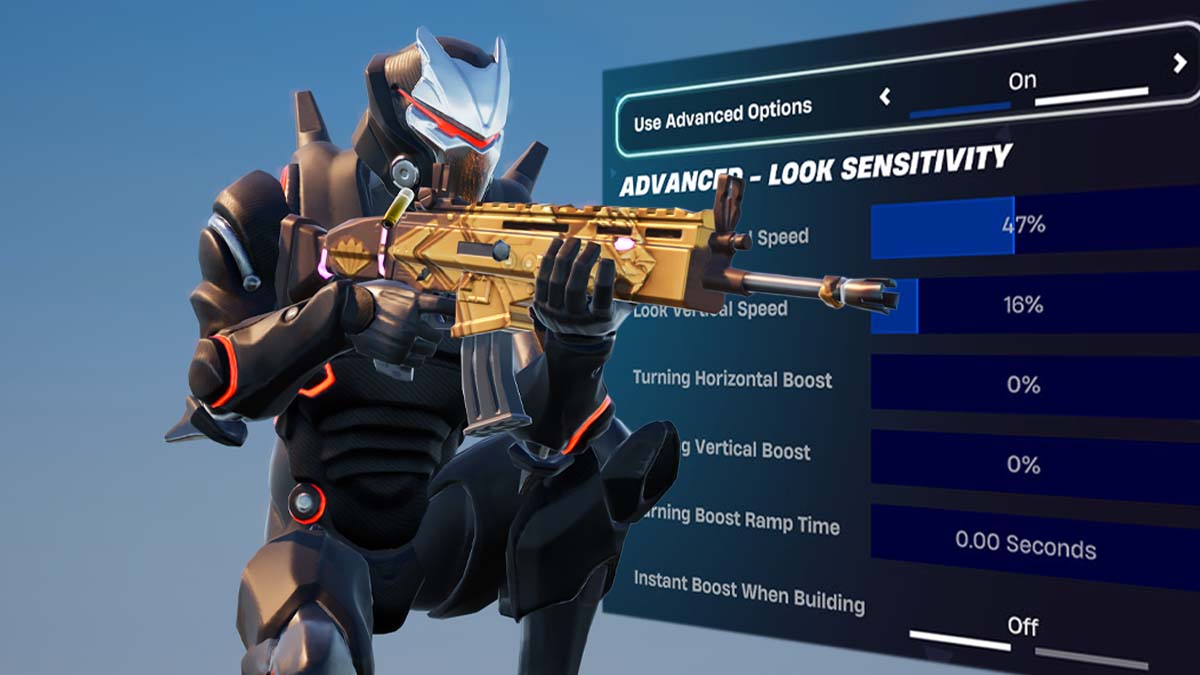
The best controller settings for Fortnite start with Use Advanced Options turned on, Look speeds of 47%, ADS speeds of 16%, and every turning boost at 0%. Add the Exponential curve, 100% Aim Assist Strength, and Build and Edit Mode multipliers of 2.1x and 2.2x for a balanced Build and Zero Build setup.
Start your deadzones at 5% on the left stick and 6% on the right, then adjust them to your controller’s drift. Getting these settings right is one of the best ways to get better at Fortnite on a controller, and the table below lists every value with a short reason.
Best controller settings for Fortnite at a glance
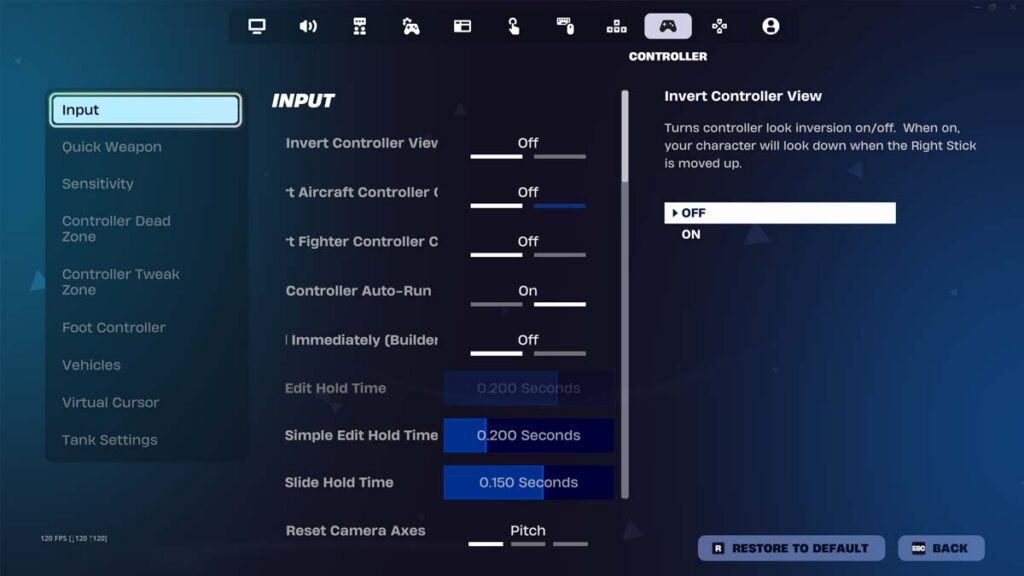
Every setting below sits in the Controller Options tab of Fortnite’s settings. Turn on Use Advanced Options first, as the percentage-based speeds, turning boosts, input curve, and Aim Assist Strength only appear in the advanced section.
| Setting | Value | Why this setting |
|---|---|---|
| Use Advanced Options | On | Unlocks separate speeds, boosts, the input curve, and Aim Assist Strength |
| Look Horizontal Speed | 47% | Turns fast enough to face enemies behind you while staying easy to control |
| Look Vertical Speed | 47% | Matching both axes keeps diagonal aim consistent |
| Turning Horizontal Boost and Turning Vertical Boost | 0% | Stops the camera from speeding up when the stick reaches its edge |
| Turning Boost Ramp Time | 0.00 seconds | There’s nothing to ramp once both boosts are off |
| ADS Look Horizontal Speed | 16% | Steady at range on the Exponential curve, quick enough for close strafes |
| ADS Look Vertical Speed | 16% | Keeps vertical corrections at the same pace as horizontal ones |
| ADS Turning Horizontal Boost and ADS Turning Vertical Boost | 0% | Keeps your speed predictable while you aim down sights |
| ADS Turning Boost Ramp Time | 0.00 seconds | There’s nothing to ramp once both ADS boosts are off |
| Look Dampening Time | 0.10 seconds | Lightly smooths tiny stick taps while keeping turns responsive |
| Look Input Curve | Exponential | Finer control over small stick movements, with Linear as the alternative for build-heavy players |
| Aim Assist Strength | 100% | Full-strength aim assist, as anything lower only reduces the help you get |
| Build Mode Sensitivity Multiplier | 2.1x | Speeds up turns in build mode for quick builds |
| Edit Mode Sensitivity Multiplier | 2.2x | Slightly faster than build mode for quick tile selection |
| Left Stick Deadzone | 5%, then the lowest value without drift | Makes movement react to small pushes of the stick |
| Right Stick Deadzone | 6%, then one point above the lowest value without drift | Makes aim react to small pushes while leaving room for Tweak Zone |
| Tweak Zone Aiming | Active while aiming down sights | Lets tiny stick movements nudge your crosshair for fine corrections |
| Vibration | Off | Removes rumble that can throw off small aim corrections |
These values sit in the middle of what current guides and verified pro setups use, so they don’t depend on one player’s habits. Even the best controller settings for Fortnite are only a starting point, though, so expect to move your Look and ADS speeds a few points after testing them with the steps further down.
If you’re new to Advanced Options, start a few points lower, at 42% Look speed and 14% ADS speed, since slower speeds are easier to control while muscle memory forms. Build and Zero Build each benefit from a couple of extra changes, which the building and Zero Build sections further down cover in detail.
Fortnite sensitivity settings explained
Fortnite’s sensitivity settings come in two versions. The basic version uses Look Sensitivity and Aim Sensitivity (ADS) sliders with presets from 1 to 10, while Use Advanced Options swaps them for separate horizontal and vertical percentages, plus turning boosts, dampening, the input curve, and Aim Assist Strength.
It’s important to note that the two scales don’t match. A basic Look Sensitivity of 5 isn’t the same as 5% in the advanced menu, so never copy a basic number into an advanced field. If your basic setting already feels right, the Copy Basic Settings option carries it into the advanced section for fine-tuning.
Look Horizontal Speed and Look Vertical Speed
Look speed sets how fast the camera turns when you aren’t aiming down sights. Most setups land between 40% and 50%, and 47% sits near the middle. Lower values make tracking steadier, while higher values help you spin toward enemies behind you and turn quickly in build fights.
Keep Look Vertical Speed equal to the horizontal value to start, so diagonal movements feel consistent. Some players run a noticeably higher vertical speed, but treat that as a preference to test once the rest of your setup feels settled rather than as a starting point.
Turning boosts and Turning Boost Ramp Time
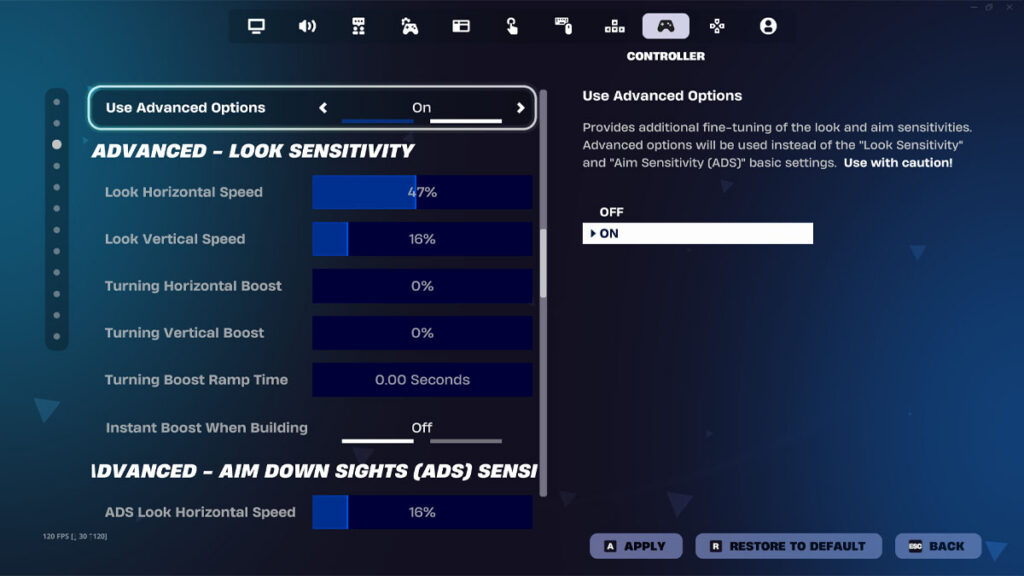
Turning Horizontal Boost and Turning Vertical Boost add extra speed when you hold the stick at its edge, and Turning Boost Ramp Time sets how long that extra speed takes to build. The result is a camera that speeds up partway through a turn, which makes it harder to stop exactly on target.
That’s why we recommend 0% for both boosts and 0.00 seconds for the ramp time, the same values listed in the pro controller setups we checked. The ADS section has its own set of boosts, which should also stay at 0%, and Instant Boost When Building has nothing to apply once the boosts are off.
ADS Look Horizontal Speed and ADS Look Vertical Speed
ADS speed controls how fast the camera moves while you aim down sights, so it shapes nearly every shot you take outside of hip fire. A 16% starting point keeps mid-range tracking steady on the Exponential curve while still letting you follow a player strafing in front of you.
Pro controller setups range from single digits to the mid-teens, and the input curve is a big part of that gap. The Linear pros we checked sit at 7% to 8%, while Exponential setups run from 15% to 17%, because Exponential already slows down small stick movements.
No matter how good your Fortnite controller settings are, you need to practice. Because of this, make sure to test your new settings right after you apply them, preferably in a Creative map.
Asmir’s advice
Drop your ADS speed 1% at a time if long-range shots feel shaky, or raise it 1% at a time if close-range targets keep escaping your crosshair. Small steps matter here, as one point is a much bigger share of a 16% ADS speed than of a 47% Look speed.
The ADS section also includes a Scoped Speed Multiplier, which only applies when you look through a scope. Leave it alone until sniper shots feel twitchy, then lower it in small steps. Because it’s limited to scoped weapons, it won’t change how your shotguns, SMGs, or unscoped rifles feel.
Look Dampening Time
Look Dampening Time smooths the start of a camera movement when you tap the stick, which can make tiny adjustments easier. The trade-off is a slight delay before the camera responds fully. Recommendations split between 0.00 and 0.20 seconds, so we start in the middle, at 0.10 seconds.
If quick flicks feel heavy, drop it to 0.00 seconds, which switches the smoothing off and matches the pro setups we checked. If small corrections still feel jumpy, especially on the Linear curve, raise it toward 0.20 seconds in small steps and stop at the first value that settles your aim.
Linear vs. Exponential: which input curve should you use?
Look Input Curve decides how camera speed rises as you push the stick. With Linear, speed climbs evenly, so half a push turns the camera at roughly half speed. With Exponential, small pushes produce much slower movement, and speed rises sharply as the stick nears its edge.
| Curve behavior | Linear | Exponential |
|---|---|---|
| Small stick movements | Move the camera more | Move the camera less, for finer control |
| Close-range fights | Feels direct and fast | Can feel slower to start a turn |
| Long-range tracking | Harder to keep steady | Easier to keep steady |
| Typical ADS speed | About 7% to 10% | About 15% to 17% |
| Best for | Build-heavy players and box fights | Beginners, Zero Build, and most players |
Exponential is our default pick, as it gives you more precision on the small corrections you make while aiming, which is how Epic Games describes it too. That makes it forgiving for beginners and steady in mid-range and long-range fights. Its downside is that quick flicks need more stick travel to get going.
Linear suits players who want every push of the stick to feel direct, and it’s a common choice among build-focused players in box fights and edit battles. However, it moves the camera more on tiny inputs, so long-range tracking can look shaky without a well-set deadzone or a little Look Dampening Time.
While both curves appear in published pro controller setups, Exponential is the more common choice. Switching curves changes how every partial push feels, even at identical speeds, so drop your ADS speed to around 8% to 10% if you move to Linear, and expect a few sessions before your muscle memory catches up.
Best deadzone settings for Fortnite
The deadzone is the area around the center of each stick where Fortnite ignores input. Left Stick Deadzone covers movement, and Right Stick Deadzone covers aim. A lower deadzone makes the stick react to smaller pushes, but set it too low and stick drift will move your character or camera on its own.
Unfortunately, stick drift comes from wear, dirt, or damage inside the stick, so it usually gets worse as a controller ages. Fortunately, each stick has its own deadzone, so a drifting stick only needs a higher value on that side. A newer controller often runs cleanly at around 5%, while a worn one may need noticeably more.
How to find your lowest usable deadzone
Test each stick on a practice island, where drift can’t cost you a fight:
- Set both deadzones to 5% and select Apply.
- Load into the island, let go of both sticks, and watch for 10 seconds.
- If the camera drifts, raise Right Stick Deadzone by 1%. If your character creeps in any direction, raise Left Stick Deadzone by 1%. Repeat until nothing moves.
- If nothing moved at 5%, lower that stick by 1% at a time until drift appears, then go back up 1% or 2% for a safety margin.
- Drift tends to grow over time, so repeat the test every few weeks.
If you use Tweak Zone, repeat the right stick check with it switched on and make sure your crosshair stays still. Tweak Zone works with the movement inside your Right Stick Deadzone, so a value right at the minimum leaves it very little room, which is why we keep the right stick one point higher.
What is Tweak Zone in Fortnite?
Tweak Zone is a controller setting Epic Games added at the start of Chapter 7 Season 3. When it’s on, the tiny stick movements your deadzone normally ignores move your crosshair directly instead of turning the camera, which helps with small corrections like turning a body shot into a headshot.
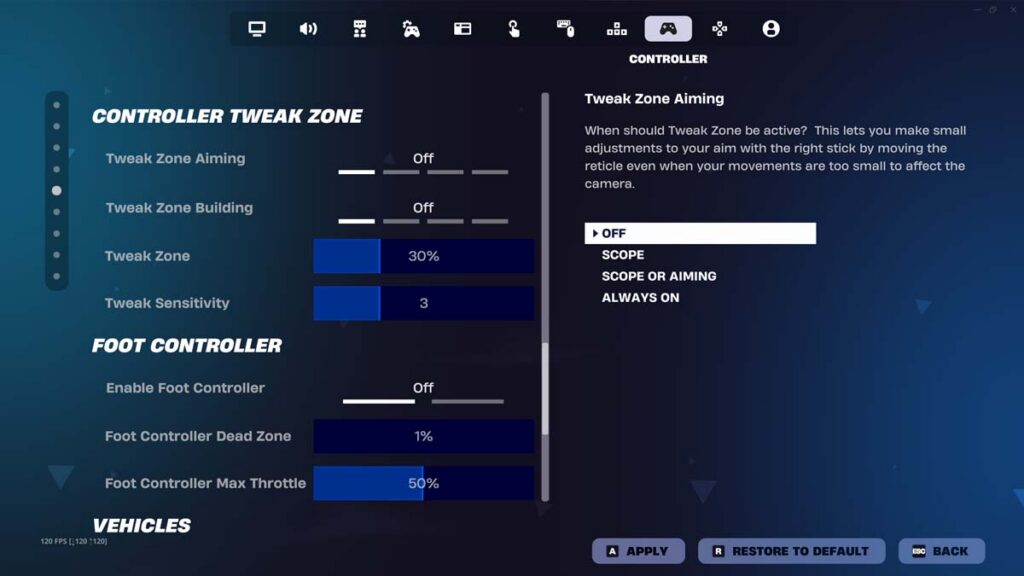
Your camera control, deadzones, and sensitivity keep working exactly as they did, since Tweak Zone only adds crosshair movement on top. You’ll find it in the Controller Options tab, where you can set its area, its crosshair sensitivity, and when it’s active. Start with it active while aiming down sights and the rest at default.
After a few sessions, widen the area or raise the crosshair sensitivity if your corrections still feel too small. Making Tweak Zone active at all times also affects hip fire, so test it with your shotgun in close-range fights before you commit to that option.
How Fortnite aim assist works
Fortnite aim assist adjusts your aim input when your crosshair is near an enemy, helping you stay on target as they move. It applies whenever you play with a controller on console or PC, and on mobile, but not with a keyboard and mouse. Aim Assist Strength runs from 0%, which turns it off, to 100%.
The game developer has reworked aim assist several times over the years. The Legacy control option was removed in 2020, and a 2024 update made aim assist’s tracking react to sudden direction changes more like a human would. Guides still built around Legacy settings or older behavior no longer match how aim assist works now.
How to turn on aim assist in Fortnite
- Open Settings and select the Controller Options tab.
- Under Sensitivity, set Use Advanced Options to On.
- Set Aim Assist Strength to 100%.
- Select Apply.
Any value above 0% means aim assist is on, so the slider itself is the quickest way to confirm it. If it reads 100% and aim assist still feels missing in fights, your gyro settings are the next thing to check.
Why aim assist stops working: the gyro catch
Aim assist switches off whenever gyro aiming is active. Gyro Aiming lives in the Touch and Motion tab, and its active mode decides when that happens. With the active mode set to Always, you never get aim assist, while Scope Only removes it every time you look through a scope.
Gyro works with DualShock 4 and DualSense controllers on PlayStation and PC, and with Joy-Con and Pro Controllers on Switch, but not with standard Xbox controllers, which lack motion sensors. If you prefer aim assist, keep Gyro Aiming off, or limit it to the moments you’d rather aim by moving the controller.
Aim assist myths worth ignoring
A few common claims about Fortnite aim assist don’t hold up:
- Lowering aim assist doesn’t sharpen your aim. It only reduces the help you get, while practice is what actually improves your tracking.
- There’s no separate console or PC aim assist option. Every platform uses the same Aim Assist Strength slider when you play with a controller.
- The menu has a single Aim Assist Strength slider. Guides that list separate Precision and Tracking sliders, an aim assist window, or an ease-in setting describe options that aren’t in the current menu.
Best Fortnite controller settings for building and editing
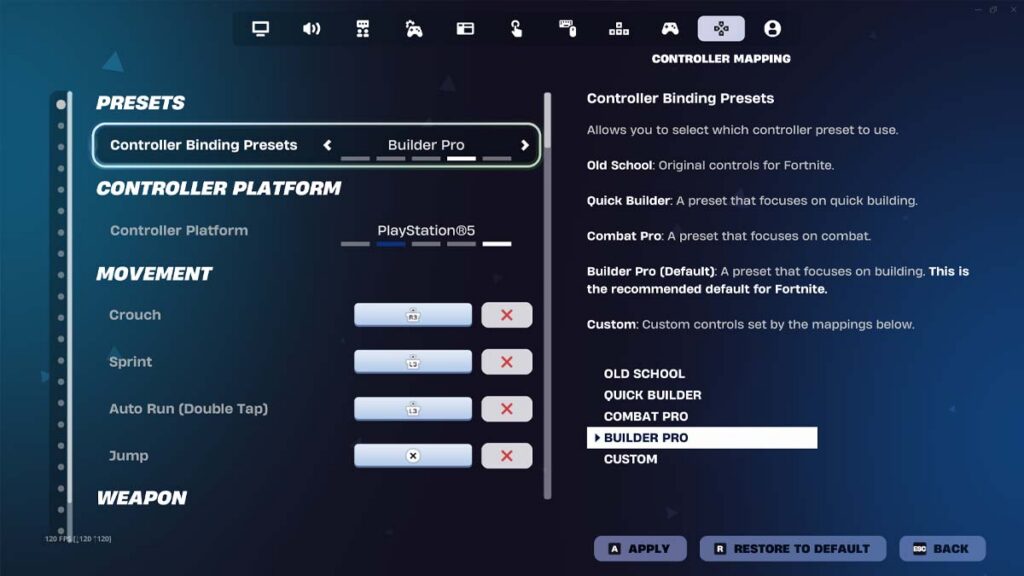
Fortnite offers five controller layouts: Old School, Quick Builder, Combat Pro, Builder Pro, and Custom. We recommend Builder Pro for Build modes, as it puts the four building pieces on the triggers and bumpers, so you can place walls, floors, ramps, and cones without taking your thumb off the right stick.
| Setting | Starting value | Why it works |
|---|---|---|
| Controller layout | Builder Pro | Building pieces sit on the triggers and bumpers |
| Build Immediately (Builder Pro) | On | Places a piece on the first press instead of selecting it first |
| Edit Hold Time | 0.100 seconds | Keeps the hold that opens edit mode short on the default edit button |
| Build Mode Sensitivity Multiplier | 2.1x | Fast turns while building without losing control |
| Edit Mode Sensitivity Multiplier | 2.2x | Quick tile selection without overshooting |
| Turbo Building | On | Keeps placing pieces while you hold the button |
| Auto Confirm Edits | Both | Confirms edits and resets without a separate press |
Both multipliers scale your Look speed while you build or edit, so 2.1x turns the camera just over twice as fast in build mode. Adjust them 0.1x at a time between 1.8x and 2.3x, lowering Edit Mode first if you overshoot tiles and raising Build Mode if builds feel sluggish when you turn.
Auto Confirm Edits sits in the Game settings and replaced the older Confirm Edit on Release option in 2023, which is why some guides still use the old name. Set it to Both, so your edits and resets go through automatically instead of waiting for a separate confirm press after every selection.
Do custom binds help with building and editing?
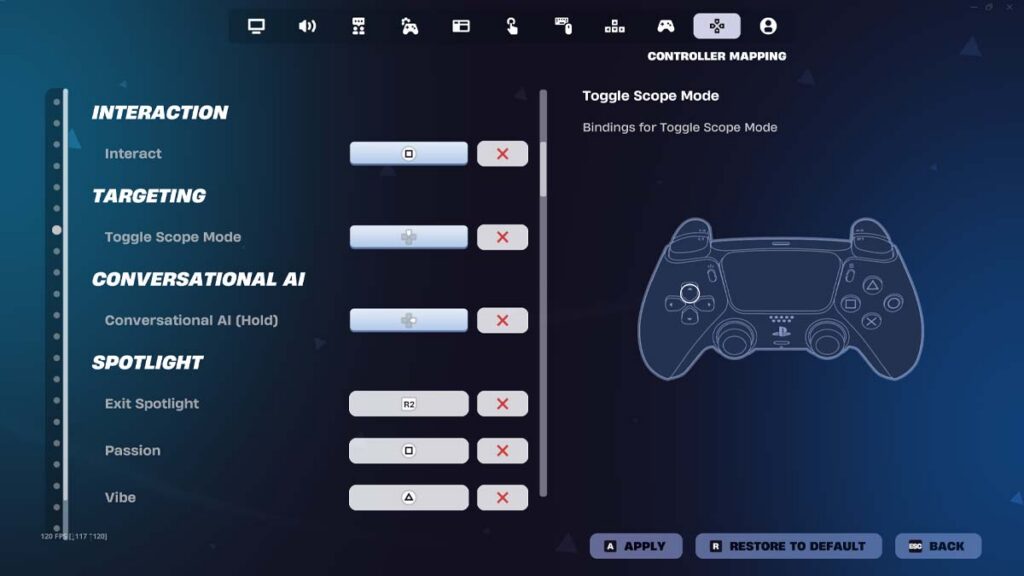
In Builder Pro, editing is a hold on Circle (B on Xbox), the same button that switches into build mode with a tap. That hold is why Edit Hold Time exists, and moving Edit to a button of its own lets a single press open edit mode instead. It’s a common first custom change for Build players.
If your controller has back paddles, one of them is the cleanest new home for Edit, keeping your thumb on the right stick. A stick click works too, but L3 already handles sprint in Builder Pro, so move sprint first if you go that route. Beyond that, only change binds that fix a specific problem you can name.
Simple Build and Simple Edit, both in the Game settings, cut building and editing down to fewer inputs and can help while you learn. However, Simple Edit isn’t available in competitive modes, so anyone planning to play tournaments should get comfortable with standard editing early rather than relying on it.
Best Fortnite Zero Build controller settings
The best controller settings for Fortnite Zero Build start from the same core aim values, but building settings stop mattering because there’s nothing to build. Fights also tend to happen at mid range from behind cover, so ADS precision and steady tracking matter more than fast turns. The table below shows the changes worth making.
| Setting | Build | Zero Build |
|---|---|---|
| Look Horizontal and Vertical Speed | 47% to 50% | 42% to 45% |
| ADS Look Horizontal and Vertical Speed | 16%, or 8% to 10% on Linear | 14% to 16% |
| Look Input Curve | Exponential, or Linear for box fights | Exponential |
| Tweak Zone Aiming | Optional | Worth using for mid-range shots |
| Build Mode multiplier, Turbo Building, Build Immediately | Set as shown above | No effect |
| Switch Mode button (Circle or B in Builder Pro) | Switches to build mode | Uses your Pocket Item |
Since May 2026, every Zero Build player carries a Pocket Item on the button that used to switch into building, as our breakdown of the Zero Build overhaul explains. If you use yours mid-fight, mapping a back paddle to that button lets you trigger it without letting go of the right stick.
Everything else in the main table carries over. The Exponential curve and slightly lower speeds are recommendations rather than rules, so if your Build settings already feel right in Zero Build, keep them. Using one setup for both modes also means you only have to build one set of muscle memory.
Other controller settings worth changing
A handful of settings outside the sensitivity menu also have a real effect on how a controller plays:
| Setting | Where to find it | Recommendation | Why |
|---|---|---|---|
| Controller Auto-Run | Controller Options | On | Lets you keep running without holding the left stick forward on long rotations |
| Visualize Sound Effects | Audio | On | Shows footsteps, gunshots, and chests as icons around your crosshair |
| Auto Open Doors | Game | Off for Build, your choice in Zero Build | Stops doors from opening when you walk into them mid-fight |
| Sprint | Controller binds | L3, the Builder Pro default | Clicking the left stick keeps your aim thumb free |
| Crouch | Controller binds | A back paddle, or R3 without one | Clicking the right stick to crouch can nudge your aim |
PS5 players who find the DualSense triggers stiff can also set Trigger Effect Intensity to Off under Accessories, then Controllers, in the console’s own settings. It turns trigger resistance off in every game that uses it, so you’ll need to switch it back on for other games that rely on the effect.
Fortnite controller settings on PS5, PS4, Xbox, Switch, and PC
The best controller settings for Fortnite don’t need to change between platforms, as every console and PC uses the same controller menu. What changes from one device to the next is the frame rate, the controller’s features, and how much input delay sits between your thumb and the screen.
| Platform | Fortnite frame rate | Gyro aiming | What to know |
|---|---|---|---|
| PS5 | Up to 120 FPS with 120 FPS Mode | Yes, with DualSense | Turn on the Performance Mode game preset first |
| PS4 | No 120 FPS Mode | Yes, with DualShock 4 | Same settings, lower frame rate |
| Xbox Series X and Series S | Up to 120 FPS with 120 FPS Mode | No | Set the console to 120Hz in TV & Display Options |
| Xbox One | No 120 FPS Mode | No | Same settings, lower frame rate |
| Nintendo Switch 2 | 60 FPS | Yes | Optional Joy-Con 2 mouse controls replace the right stick |
| Nintendo Switch | 30 FPS | Yes, with Joy-Con or Pro Controller | Lowest frame rate of any console |
| PC | Depends on your hardware | Yes, with DualSense or DualShock 4 | Use Epic’s low-latency video settings |
Frame rate is the biggest difference between platforms. At 60 FPS, each frame stays on screen for about 16.7 milliseconds, and at 120 FPS that drops to about 8.3, so your stick input shows up sooner and camera movement looks smoother. The same Look speed simply feels more responsive at the higher frame rate.
On PS5, set the Performance Mode game preset under Saved Data and Game/App Settings before turning on 120 FPS Mode in Fortnite’s Video settings. On Xbox Series X and Series S, set the refresh rate to 120Hz in TV & Display Options first. Both consoles also need a TV or monitor that supports 120Hz.
Switch 2 runs Fortnite at 60 FPS, double the original Switch’s 30 FPS, and its Joy-Con 2 controllers can work as a mouse through the Mouse tab in Fortnite’s settings. That mode disables the right stick, so the stick settings in this guide only apply while you play with the sticks.
PC players using a controller get the same menu, aim assist, and Tweak Zone as console players. Epic’s recommended PC video settings also cut input delay for any input: Fullscreen, Vsync off, Performance rendering mode, and NVIDIA Reflex Low Latency set to On + Boost on NVIDIA graphics cards.
If you’re away from home, Fortnite cloud gaming is a handy way to squeeze in quick practice with a controller on a laptop, tablet, or phone, and it’s the only supported way to play Fortnite on a Chromebook. Every stream adds some input delay, though, so fine-tune your settings on your main device and treat cloud sessions as warm-ups.
How to test and fine-tune your controller settings
Mechanics Training V5 (2424-4344-7824), a practice island by raider464 with aim and edit courses, is a safe place to test changes, as nothing you do there counts toward your Ranked progress. To load it, open Discover, choose Search, enter the code, and pick the island. Then work through these steps, noting every value you change:
- Enter the starting values from the main table and play a couple of sessions before changing anything.
- Turn a full 180 degrees at full tilt, then track a moving target on the aim course.
- If your crosshair keeps overshooting or wobbling past targets, lower both Look speeds by 3 to 5 points. If you can’t turn fast enough to face someone behind you, raise them by the same amount.
- Aim down sights at moving targets. Lower your ADS speeds by 1% if you overshoot, or raise them by 1% if targets slip away.
- Run the deadzone drift check from earlier in this guide.
- Adjust Left Stick Deadzone and Right Stick Deadzone separately, never together.
- If you play Build, run the edit course and a few build sequences, then adjust the multipliers by 0.1x.
- Change one setting at a time, and give each change a few sessions before judging it.
Small, single changes let you tell which setting actually helped. Replacing the whole configuration after one bad match throws away the muscle memory you’ve built and makes it much harder to work out what made the difference.
Aim courses can’t fully recreate a real fight, so the next step is testing your settings against other players. Our list of the best XP maps in Fortnite includes The Pit Free For All, where instant respawns let you take fight after fight while you earn XP, and it has a Zero Build version too.
Once your settings stop changing, you’ll likely climb the ranks faster, as your aim will feel the same from one match to the next. Our guide to Fortnite ranks in order explains how the Ranked system works and how much you need to reach the top rank.
Frequently Asked Questions
With Use Advanced Options on, set Look speeds to 47%, ADS speeds to 16%, and every turning boost to 0%. Then use the Exponential curve, 0.10 seconds of Look Dampening Time, 100% Aim Assist Strength, Build and Edit Mode multipliers of 2.1x and 2.2x, and the lowest deadzones your controller allows without drift.
Start at 47% Look speed and 16% ADS speed with turning boosts off, then adjust in small steps.
Exponential is the better default for most players, as small stick movements produce finer camera movement, which helps tracking at range. Linear gives a more direct response that many build-focused players prefer in box fights, usually with a lower ADS speed.
Start both sticks at 5%, raise any stick that drifts by 1% at a time, and set each one separately, since one stick often drifts more than the other on older controllers. If you use Tweak Zone, keep the right stick one point higher.
Tweak Zone turns the tiny stick movements your deadzone normally ignores into direct crosshair movement, so you can make small corrections without turning the camera.
First, check that Aim Assist Strength is above 0% in the advanced section of Controller Options. Next, make sure Gyro Aiming isn’t active, because Epic disables aim assist whenever gyro is in use.
Yes, most Pro controller players run Aim Assist Strength at 100%.
No, both consoles use the same controller menu, and the same values work on each.